
Enabling Your Sitewide Popup
A sitewide pop-up allows you to display important/timely information across the entire site by enabling this single text feature.
Every site is built with a single sitewide pop-up, which is a Text Feature with a particular custom css class. Your sitewide pop-up is different than a page popup which you can enable on a single or multiple pages.
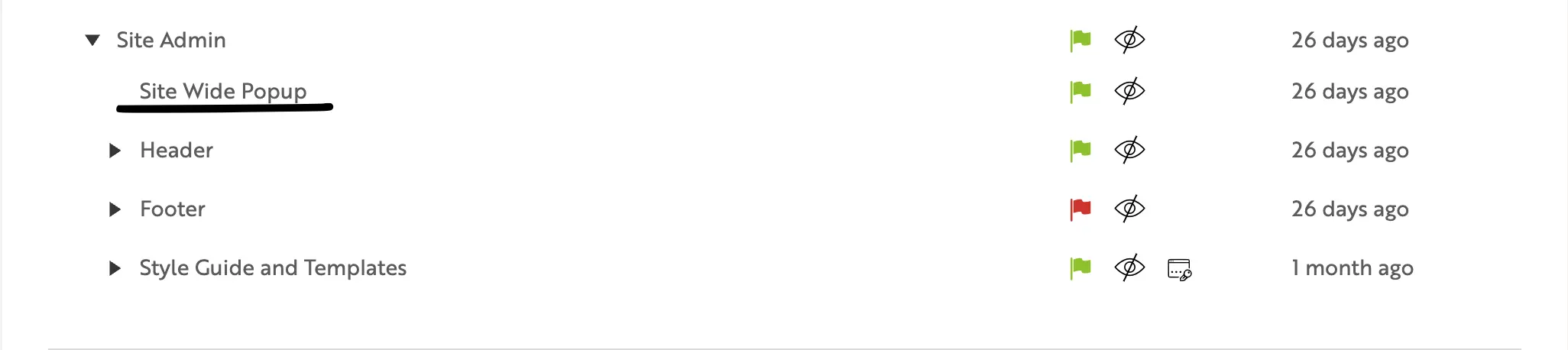
Step 1: Locate Your Sitewide Popup Page
Your sitewide popup page may be located under your Site Admin Parent Page or Style Guide Parent Page in your Sitemap. If you're having trouble finding it:
- Use the Search Bar in your Sitemap and search for "Sitewide Popup Page"
Step 2: Edit Your Popup Content
- Navigate to the Sitewide Popup Page
- Click into the text feature on that page (there should be only one)
- Edit the content with your new popup message
- Save your changes
Step 3: Enable the Popup
The sitewide popup is hidden by default. To make it visible:
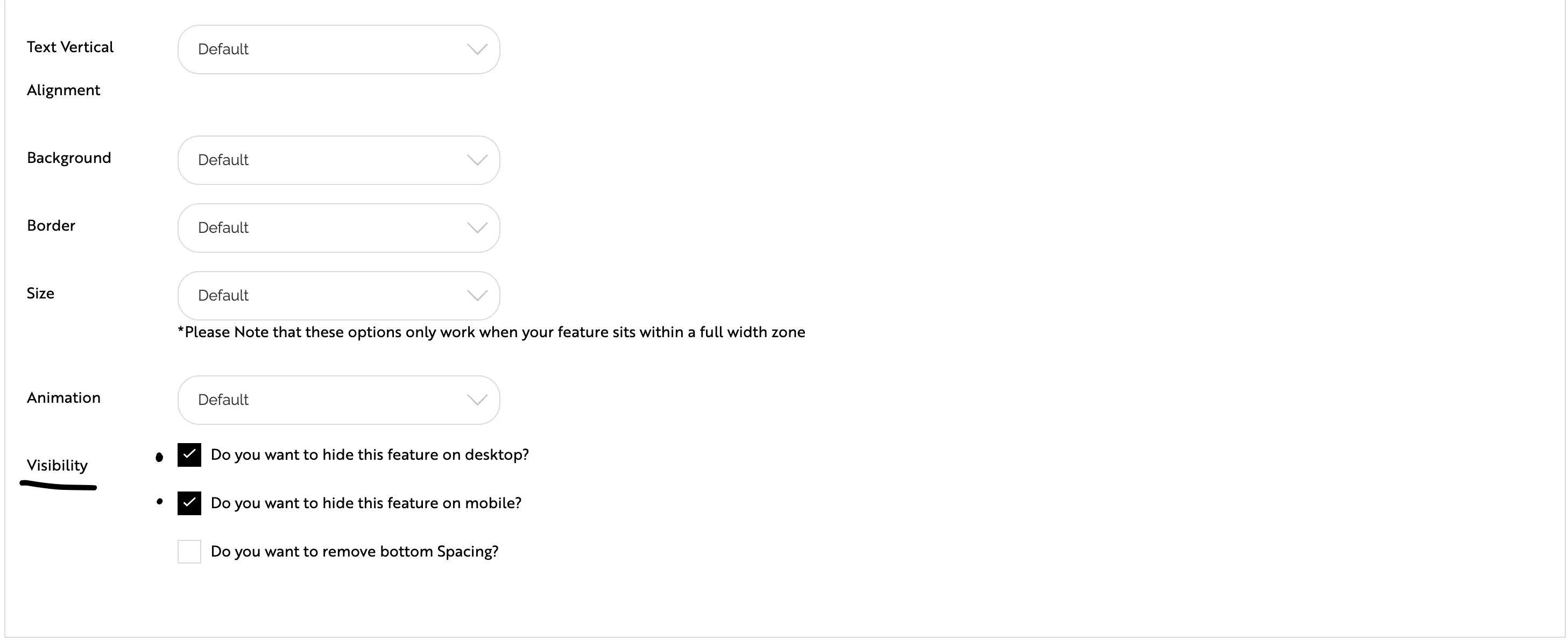
- In the text feature, go to the Settings tab
- Navigate to the Visibility section
- Ensure both of these boxes are unticked:
- Do you want to hide this feature on desktop?
- Do you want to hide this feature on mobile?
- Save these changes
- Publish the Page
Step 4: Disable the Popup (When No Longer Needed)
To remove the popup once your message is no longer relevant:
- Return to the text feature's Settings tab
- Navigate to the Visibility section
- Tick both boxes to hide the feature on desktop and mobile
- Save and publish
Discover more


ONGOING SUPPORT
Need help with anything else?
If you can’t find the answer you’re looking for in our Knowledge Base, there are three ways you can get support: